
Email Retention Policy Not Working? A Complete Troubleshooting Guide
Email retention plays a critical role in maintaining mailbox hygiene, ensuring compliance, and optimizing storage in Microsoft 365. However, many administrators run into a common problem: “Email Retention Policy Not Working.” In this article, we will break down the core concepts you need to understand, followed by a step-by-step troubleshooting guide to resolve retention issues in Exchange Online.
Table of Contents
Email Retention Policy Not Working?
Before jumping into fixing retention issues, it’s important to understand how email retention works in Microsoft 365. Three key components play an important role:
Retention Tags and Retention Policies in Exchange Online
Retention Policies: A retention policy is a collection of retention tags or in nutshell, a retention policy is a container in which you add tags and apply it to the mailbox. When applied to a mailbox, these tags dictate how items are treated—delete, archive, or retain.
Retention Tags (MRM Tags): Retention Tags define what action will happen to an email item and when. There are three types of tags:
- DPT (Default Policy Tag): Applies to the entire mailbox. DPT tags have 3 actions: Move to archive,
Delete and allow recovery, and Permanently delete. - RPT (Retention Policy Tag): Applies to default folders such as Inbox, Sent Items, Deleted Items, etc. RPT tags have 2 actions: Delete and allow recovery, and Permanently delete.
- Personal Tags: Allow users to assign retention settings manually to folders or items. Personal tags have 3 actions: Move to archive, Delete and allow recovery, and Permanently delete. Personal tags are available to Outlook and Outlook on the web. In Outlook and Outlook on the web, personal tags with the Move to Archive action appear as Archive Policy, and personal tags with the Delete and Allow Recovery or Permanently Delete actions appear as Retention Policy, as shown below:

Personal tags are created by an Administrator but can be applied only by the users from Outlook or OWA. If a Personal Tag is applied using a retention Policy on a mailbox from Exchange Admin Center or Microsoft Purview Portal, or a Default Retention Policy is applied on the mailbox that by default contains Personal tags, these tags will not be applied on the mailbox and will not take any action until the personal tags are specifically applied by the user from Outlook or OWA.
MRM (Messaging Records Management)
MRM (Messaging Records Management) is the mailbox data lifecycle framework in Exchange Online that governs email retention, deletion, and archiving. It ensures organizations comply with policies by automatically managing mailbox content based on assigned Retention Tags and Retention Policies.
Below is a conceptual architecture of how MRM operates inside Exchange Online:

MRM enforcement happens through the Managed Folder Assistant (MFA)—a background service that evaluates retention settings and performs actions.
MRM works by applying retention tags—such as Default Policy Tags (DPT), Retention Policy Tags (RPT), and Personal Tags—to items within a mailbox based on the retention policy assigned to the user. These tags determine how long an item should be retained and what action should occur when it reaches the end of its retention period, such as moving it to the archive or deleting it. The Managed Folder Assistant (MFA), a background service in Exchange Online, is responsible for enforcing these tags. It periodically scans each mailbox, reads the retention metadata, calculates the retention age of every item, checks which tag applies, and performs the necessary action—whether moving items to the Online Archive, deleting them, or marking them as past retention. During processing, MFA also writes internal metadata to hidden folders like MRM and ELC folders, ensuring it can track when items were last processed and resume accurately in future cycles. If any compliance hold (Litigation Hold, eDiscovery Hold, or Retention Hold) exists, it can override or delay MRM actions. Overall, the MRM process works silently in the background, combining retention tags, mailbox metadata, and MFA processing to automatically manage mailbox content throughout its lifecycle.
MFA (Managed Folder Assistant)
The Managed Folder Assistant (MFA) is the core background engine in Exchange Online responsible for enforcing Messaging Records Management (MRM) and applying retention and archive policies across user mailboxes. Operating as part of Microsoft’s cloud-based Mailbox Assistant Service, MFA runs automatically on a variable cycle—typically every 1 to 7 days, depending on system load, mailbox activity, and internal workload balancing—rather than a fixed weekly schedule.
During each run, MFA silently scans the mailbox, reads retention metadata such as applied retention tags, folder inheritance, and policy timestamps, and calculates the retention age of each item using the received or modified date. It then evaluates each item against its applicable Default Policy Tag (DPT), Retention Policy Tag (RPT), or Personal Tag to determine whether it should be moved to the Online Archive, deleted to the Recoverable Items folder, permanently purged, or simply marked as past retention.
In the background, MFA interacts with hidden mailbox structures such as MRM folders, ELC metadata tables, and the Recoverable Items subsystem to track processing results, log timestamps (LastProcessedTime, LastSuccessTime), and maintain item-level retention attributes. If any mailbox-level compliance controls—Litigation Hold, In-Place Hold, Retention Hold, or Preservation Lock—are active, MFA automatically adjusts its behavior and stops deletion actions while still evaluating and tagging items. Administrators can override the natural schedule by manually triggering MFA using the Start-ManagedFolderAssistant cmdlet, which immediately queues the mailbox for processing.
Troubleshoot Exchange Online Archive Policy not working
If emails are not moving to the archive or retention policies are not applying, follow this structured approach:
Check if the Archive Mailbox is Enabled and Provisioned
Retention actions like archiving require an enabled archive mailbox. To verify if archive mailbox is provisioned for the user, run below PowerShell command:
Get-Mailbox "user@domain.com" | Select ArchiveStatus,ArchiveNameThe output of above command will show the status of archive mailbox and the name of the archive mailbox as shown below:

Check if emails are moving to Online Archive
Once you verify that online archive mailbox is provisioned for the user, run below PowerShell command and check if emails are moving to online archive:
Get-MailboxStatistics "user@domain.com" -Archive | select ItemCount,TotalItemSizeThe output of above command will show the total item count in archive mailbox as shown below:

Check which Retention Tag is applied on mailbox
If an administrator has applied a retention tag on the mailbox, you can verify the retention tag using below PowerShell commands:
get-mailbox "user@domain.com" | Select-Object RetentionPolicyThe above command will display the retention policy applied on the mailbox as shown below:

In above screenshot you can see the Default MRM Policy is applied on the mailbox. Now to find out what tags this policy includes, run below PowerShell command:
Get-RetentionPolicy -Identity "Default MRM Policy" | Select-Object -ExpandProperty RetentionPolicyTagLinksThe above command will display all the tags applied within the retention policy as shown below:

Check if Mailbox is under Hold
Once you verify the archive mailbox status and you have verified that correct retention tags are applied to the mailbox, you need to ensure that the affected mailbox is not under Retention Hold. Placing a mailbox on retention hold suspends the processing of an MRM retention policy by the Managed Folder Assistant for that mailbox.
To verify if the mailbox is under Retention Hold, run below PowerShell command:
Get-Mailbox "user@domain.com" | fl *hold*The above PowerShell command will show all types of holds on a mailbox and if they are enabled or not as shown below:

While working on issues where emails are not moving to online archive, you need to focus on Retention Hold attribute. Other type of holds like Litigation Hold and InPlace hold comes in the picture when you are working on emails not getting deleted from the mailbox.
Check Last Modified Date of Emails/Items
Once you have verified that Retention Hold is not enabled on the mailbox but still emails are not moving to online archive mailbox, you need to check last modified date of emails.
Retention age in Exchange Online is calculated based on the item’s retention start date, which is usually the Date Received for emails that were never altered. However, if the item is modified—such as being moved to another folder, marked as read/unread, flagged, categorized, or updated by Outlook, mobile clients, or third-party apps—the Last Modified Date changes, and that becomes the new starting point for retention calculations. This means an email that appears old based on its received date may still not meet the retention threshold if its modified timestamp is recent.
To verify the last modified date of an email, follow below steps:
- Open Outlook Client
- Select any email and press Alt + Enter

You can also run below PowerShell command to check last modified date for all items of a mailbox:
Get-MailboxFolderStatistics -Identity "user@domain.com" -IncludeOldestAndNewestItems | Export-CSV -NoTypeInformation -Path C:\Test\primaryfolderstats.csvCheck Mailbox Size
If the mailbox is full or its storage utilization exceeds 90%, retention processing and mailbox cleanup can slow down or stall.
In such situations, the user should first move some emails manually to the Online Archive mailbox to reduce pressure on the primary mailbox. Once the mailbox usage drops to a healthy level, an administrator should run the Start-ManagedFolderAssistant command to force the Managed Folder Assistant (MFA) to reprocess the mailbox and continue moving eligible emails to the Online Archive automatically as per the assigned retention policy.
Additionally, the mailbox should be larger than 10 MB, because very small mailboxes may not contain enough data for retention or archive policies to take effect, leading to the impression that MRM is not working.
Check ELC Processing status
To further validate whether Email Lifecycle (ELC) processing is functioning correctly for the affected mailbox, you can check ELC Processing Status using the below PowerShell command:
Export-MailboxDiagnosticLogs –Identity "user@domain.com" –ExtendedPropertiesIn the output of above command, you need to check below attributes and their values those will help you to narrow down the issue:
- ELCLastSuccessTimestamp
- ElcLastRunTaggedFolderCount
- ElcLastRunTotalProcessingTime
- ElcLastRunTaggedWithArchiveItemCount
- ElcLastRunUpdatedItemCount
If ELCLastSuccessTimestamp attribute doesn’t show any date and time, this indicates ELC is disabled on the mailbox or on the organization level. To verify this attribute, you need to run below commands:
Get-OrganizationConfig | Select-Object ElcProcessingDisabled
Get-Mailbox "user@domain.com" | Select-Object ElcProcessingDisabledPlease ensure ElcProcessingDisabled attribute is set to False for both commands. If it is set to true, run below PowerShell command to disable it:
Set-Mailbox "user@domain.com" -ElcProcessingDisabled $falseForce MFA on Mailbox
If the ELCLastSuccessTimestamp is not showing the recent time and date, run below command to force MFA (Managed Folder Assistant) on the mailbox:
Start-ManagedFolderAssistant -Identity "user@domain.com" -FullCrawlUse MFCMAPI to delete MRM
After you have followed all the above steps but the emails are still not moving to online archive, you can use MFCMAPI tool to further troubleshoot the issue.
1. Download MFCMAPI tool and extract the folder. After extracting the folder, open MFCMAPI application.
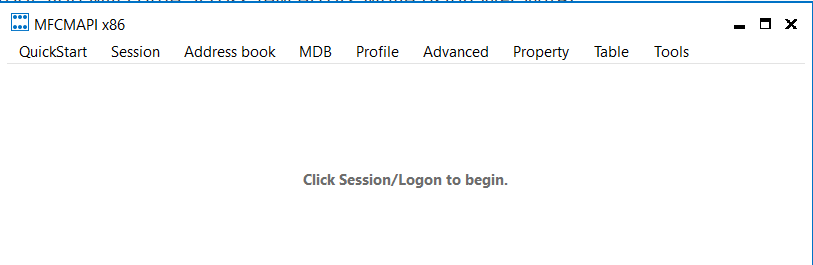
2. Click Tools and click Options.
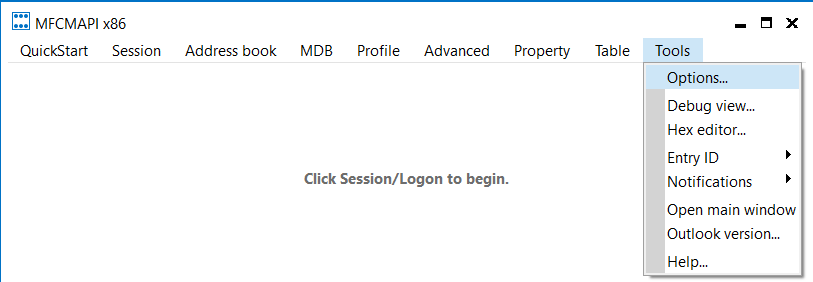
3. Scroll down and check 2 options as given below:
- Use the MBD_ONLINE flag when calling OpenMsgStore
- Use the MAPI_NO_CACHE flag when calling OpenEntry

4. Click Session > Logon > select your Outlook profile you want to troubleshoot and click Ok.
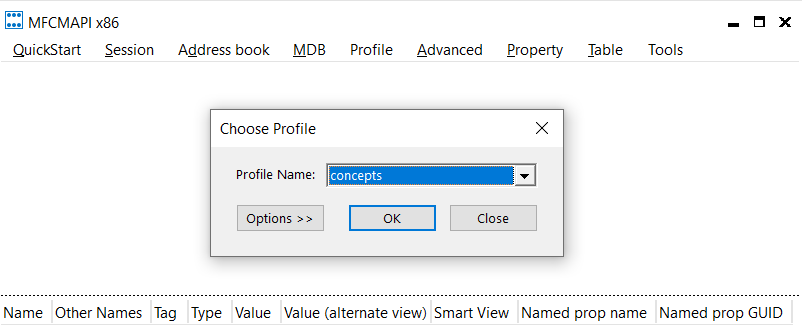
This will load your outlook profile in MFCMAPI application.

To troubleshoot your mailbox using MFCMAPI application, double click on your email address and expand Root Container as show below:
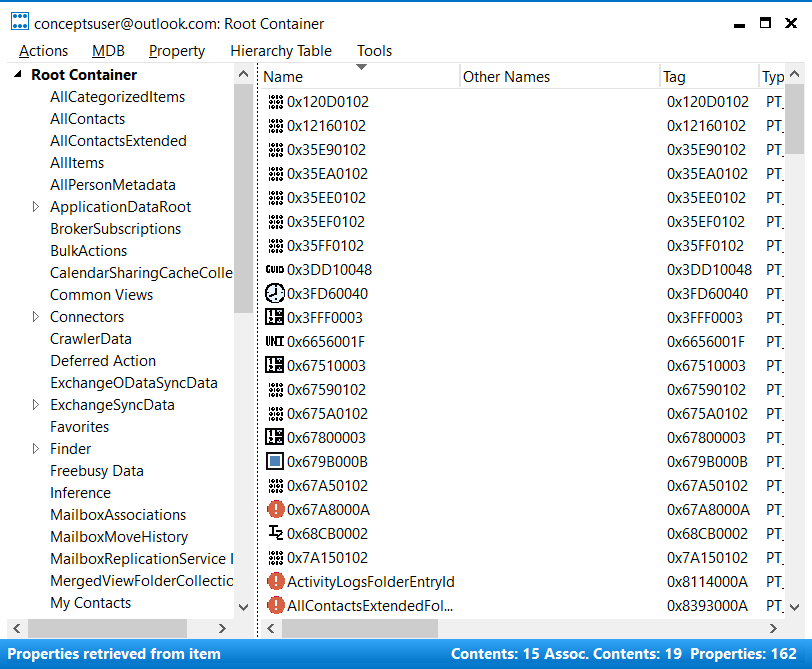
Expand Top of Information Store.
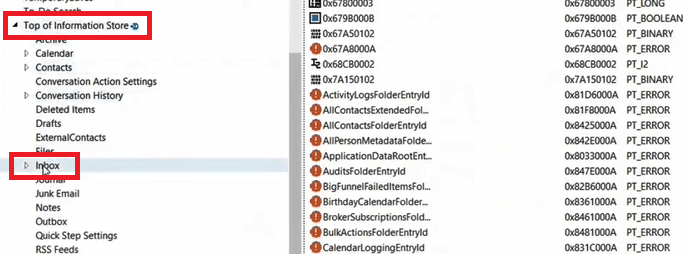
Right click Inbox and click Open associated contents table.
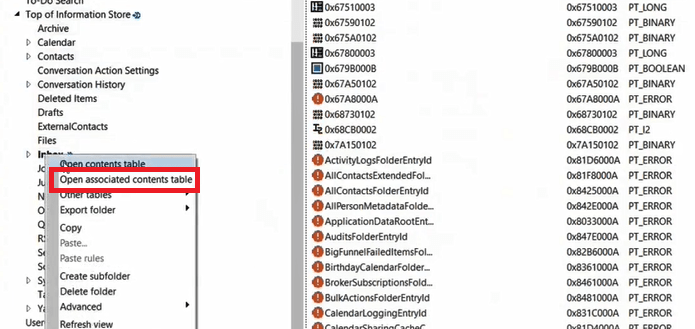
When you run Start-ManagedFolderAssistant PowerShell command on a mailbox, it triggers Messaging Records Management on that mailbox.
On the next screen of MFCMAPI, go to Message Class tab and look for IPM.Configuration.MRM as shown below:
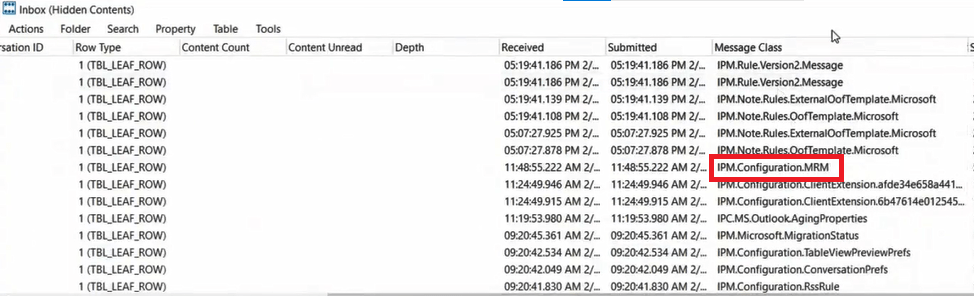
IPM.Configuration.MRM is a Messaging Records Management rule that triggers on the mailbox when Managed Folder Assistant process a mailbox.
Right click on this rule and select Hard Delete to delete this rule and run Start-ManagedFolderAssistant PowerShell command for the affected mailbox, and check if emails are now moving to online archive.
Check if Personal Tag is applied on items using MFCMAPI
As we discussed in the beginning of this article that the Personal Tags are created by the administrator, but these are applied by the users from Outlook client or OWA.
If a retention policy has all type of tags applied, personal tag will always take precedence. It means, if an administrator has applied a retention policy on the mailbox that includes Default Policy Tag (DPT) or Retention Policy Tag (RPT) that has an action to move 1 year old emails to archive, and the user has applied Personal Tag (PT) on an email that has an action move 6 months emails to archive, the personal tag will always take precedence.
To view Retention Tags applied on a mailbox, click IPM.Configuration.MRM rule and look for PR_ROAMING_XMLSTREAM.
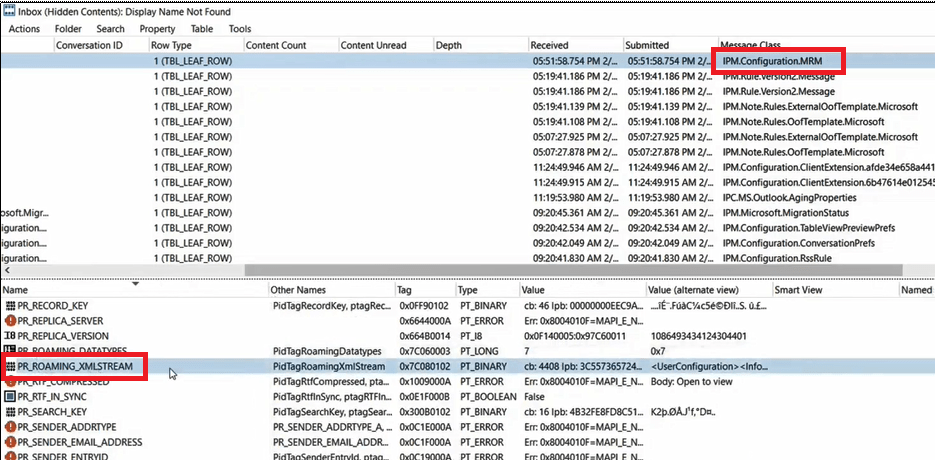
Double click on PR_ROAMING_XMLSTREAM and copy everything under Text.
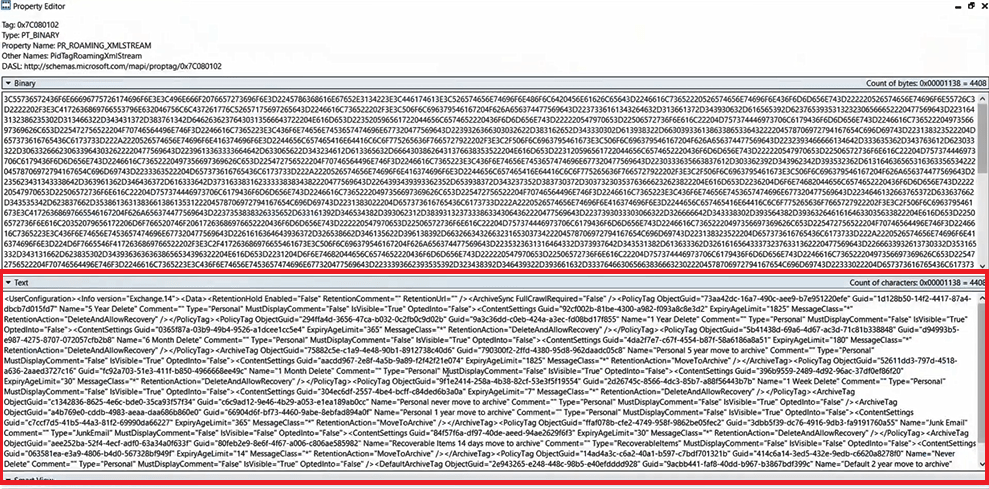
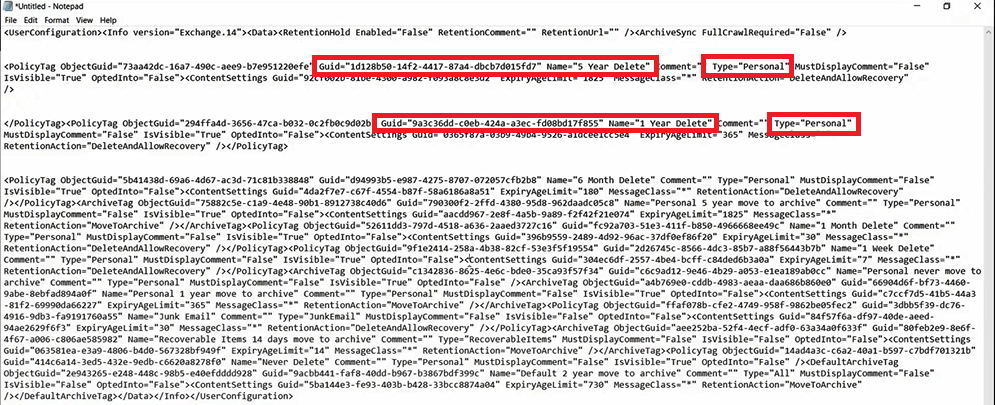
As you can see in the below image, you can see the GUID value of Retention Tag, Retention Tag name, and type of retention tag applied on the mailbox.
You might like our other articles on How to use MFCMAPI, Troubleshoot OOF messages using MFCMAPI, and Purge emails from Recoverable Items folder using MFCMAPI.
Please join our YouTube channel for the latest videos on Cloud technology and join our Newsletter for the early access of the blogs and updates.
Happy Learning!!